Digital Signage
Your menu on any TV,with prices that stay right.
Change a price once and it changes on the board, the kiosk, and the phone. Sold-out items strike through on their own, and a QR code in the corner lets fans order from their phone.
Works with the TV you have A Fire TV Stick behind it Free app

How it works
No new screens to buy.
Use a TV you already have
Any TV or display with an HDMI port works. At the stand, in the gym lobby, or along the concourse.
Plug in the player
A Fire TV Stick behind the TV connects to your Wi-Fi, and that is the only hardware. A player you already own works too.
Pick the menu
Sign in on the player, choose which stand’s menu the screen shows, and it is live. Prices and sold-out changes arrive on their own from then on.
BlazeBite Digital Signage is free in the Amazon Appstore. Search it on the Fire TV itself, install it, and pair the screen from your portal.
Photo menus
One photo, and the menu beside it
A photo of the burger next to the burger menu sells more burgers. One category per screen, in large type, light or dark, with a line under each item if you want to say what is in it.
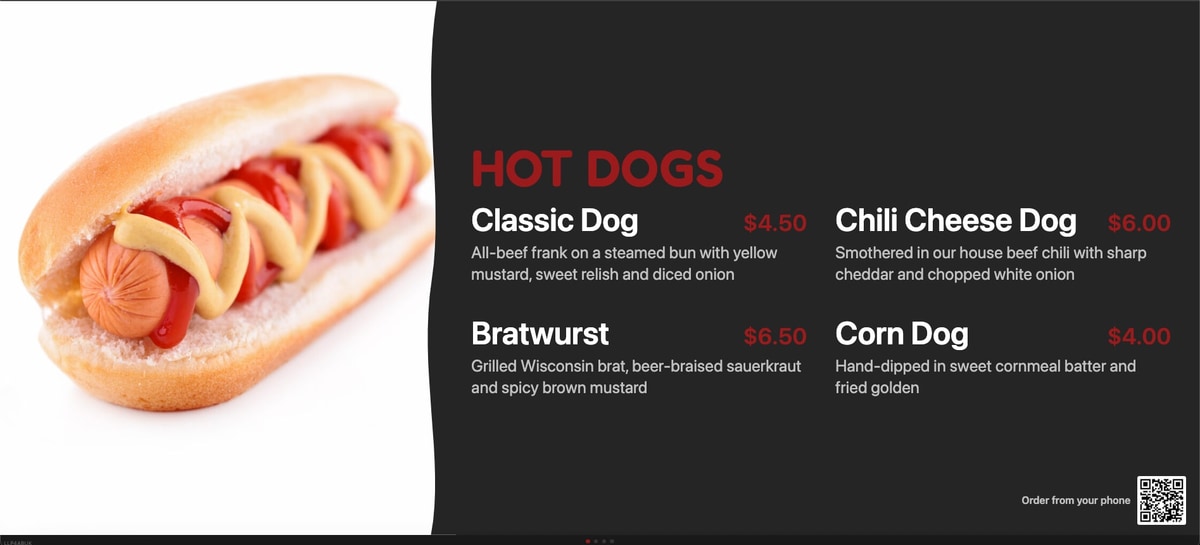
Dark
The same layout on black, for a dim stand or a screen that faces the field at night.
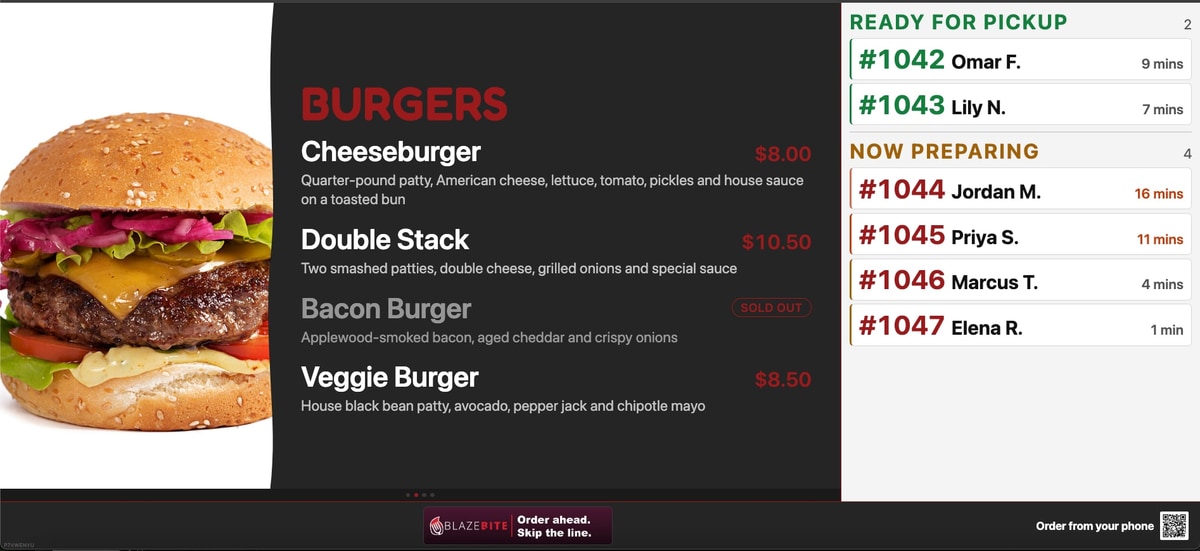
Dark, with order status
The same screen on black, with the orders that are ready or still cooking down the right side.
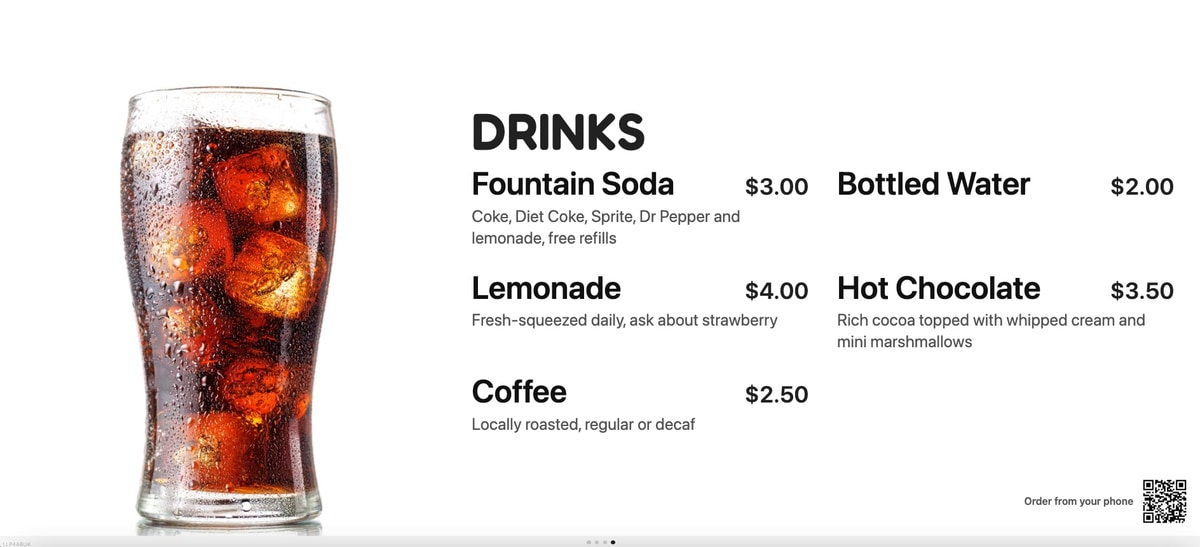
A line under each item
What is in it, what it comes with, or what the upgrade costs. Leave it off for a plain list.
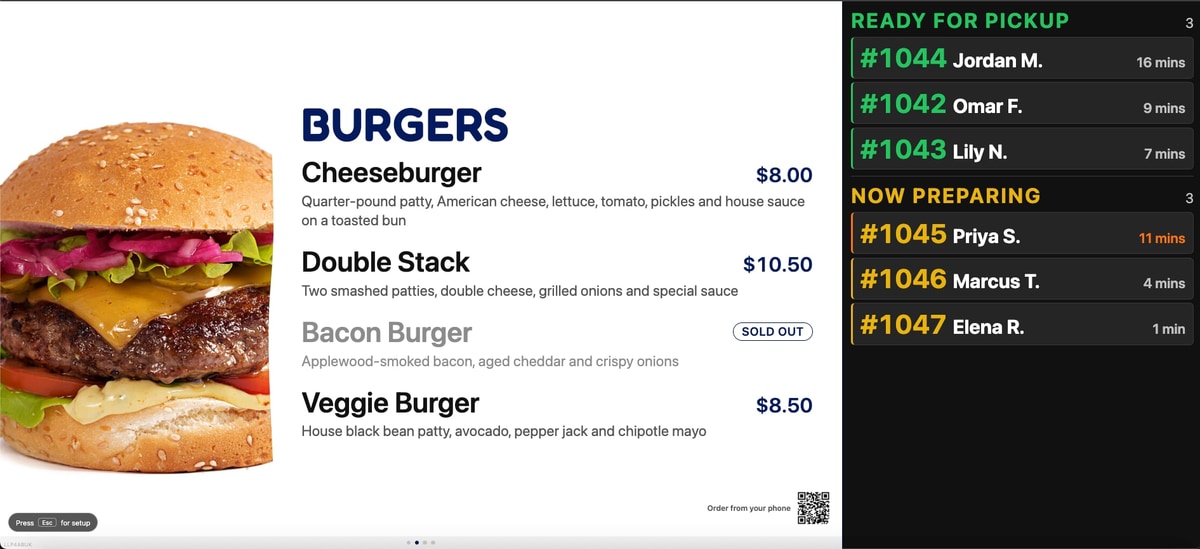
Light, with order status
For the TV over the pickup window: the menu keeps selling while people wait for their number.


One board, many layouts
Pick the one that fits the screen and the line.
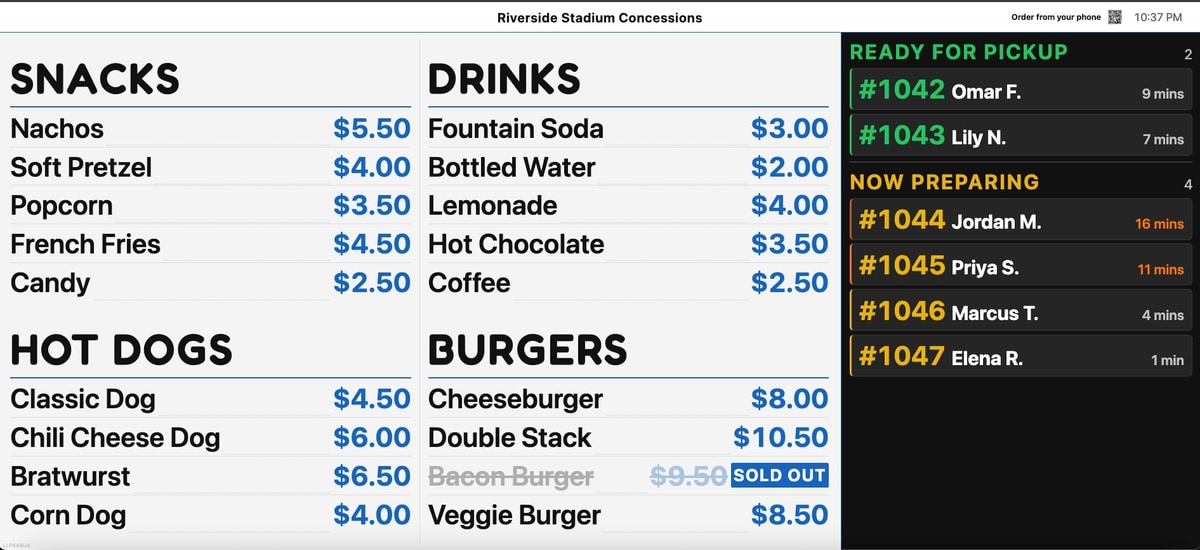
Menu and order status together
One category in large type on the left, and the orders that are ready or still cooking on the right.
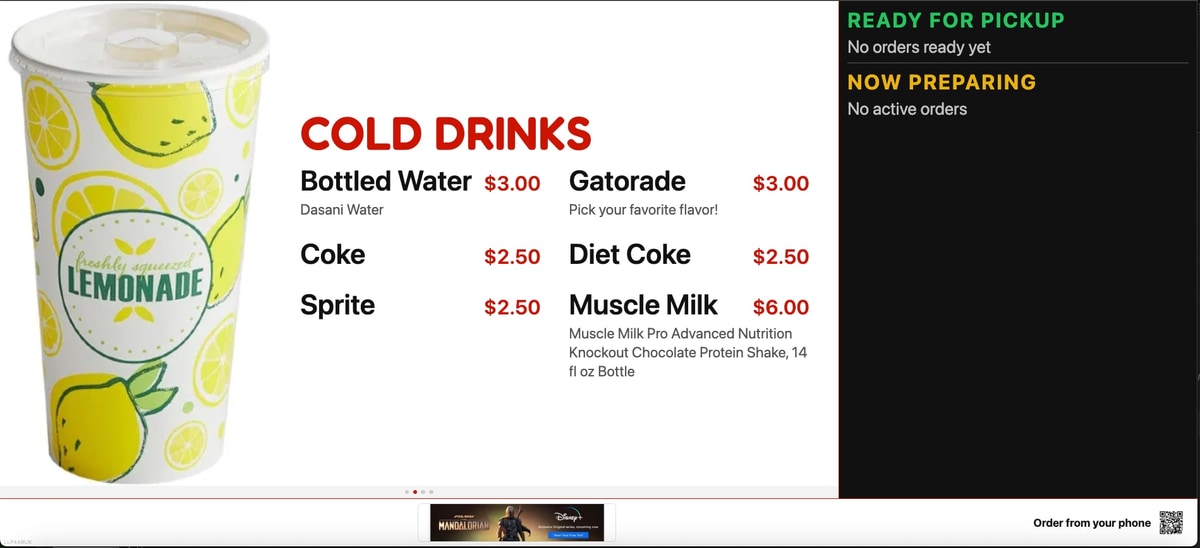
Photo menu at the window
A photo category with the order column beside it, for a screen over the pickup window on a slow night or a busy one.
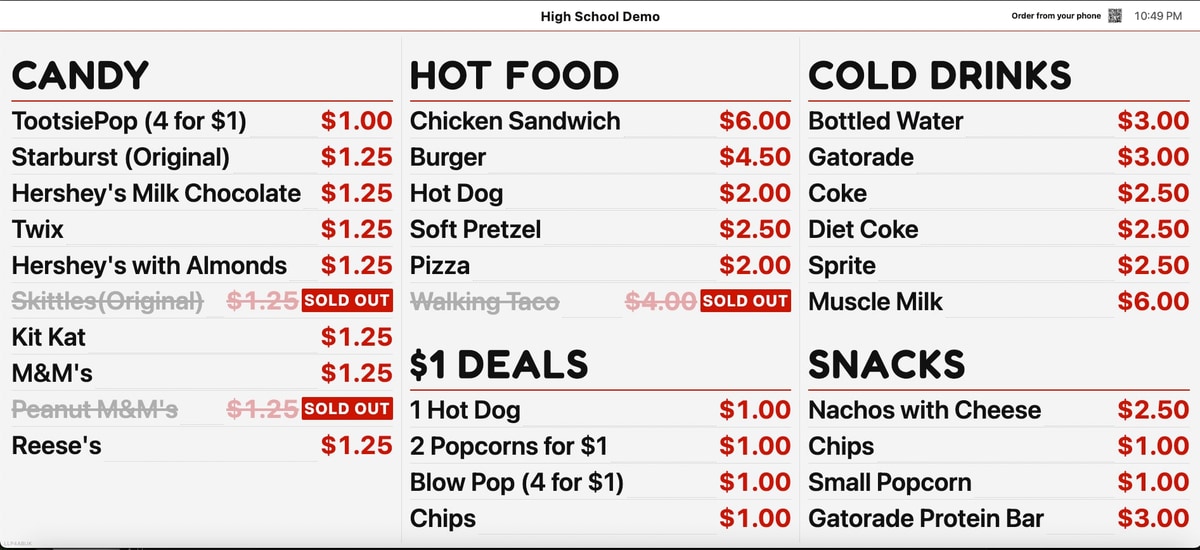
Your categories, your order
The whole menu on one screen, with the sellers first. Sold-out items strike through on their own as the night goes.
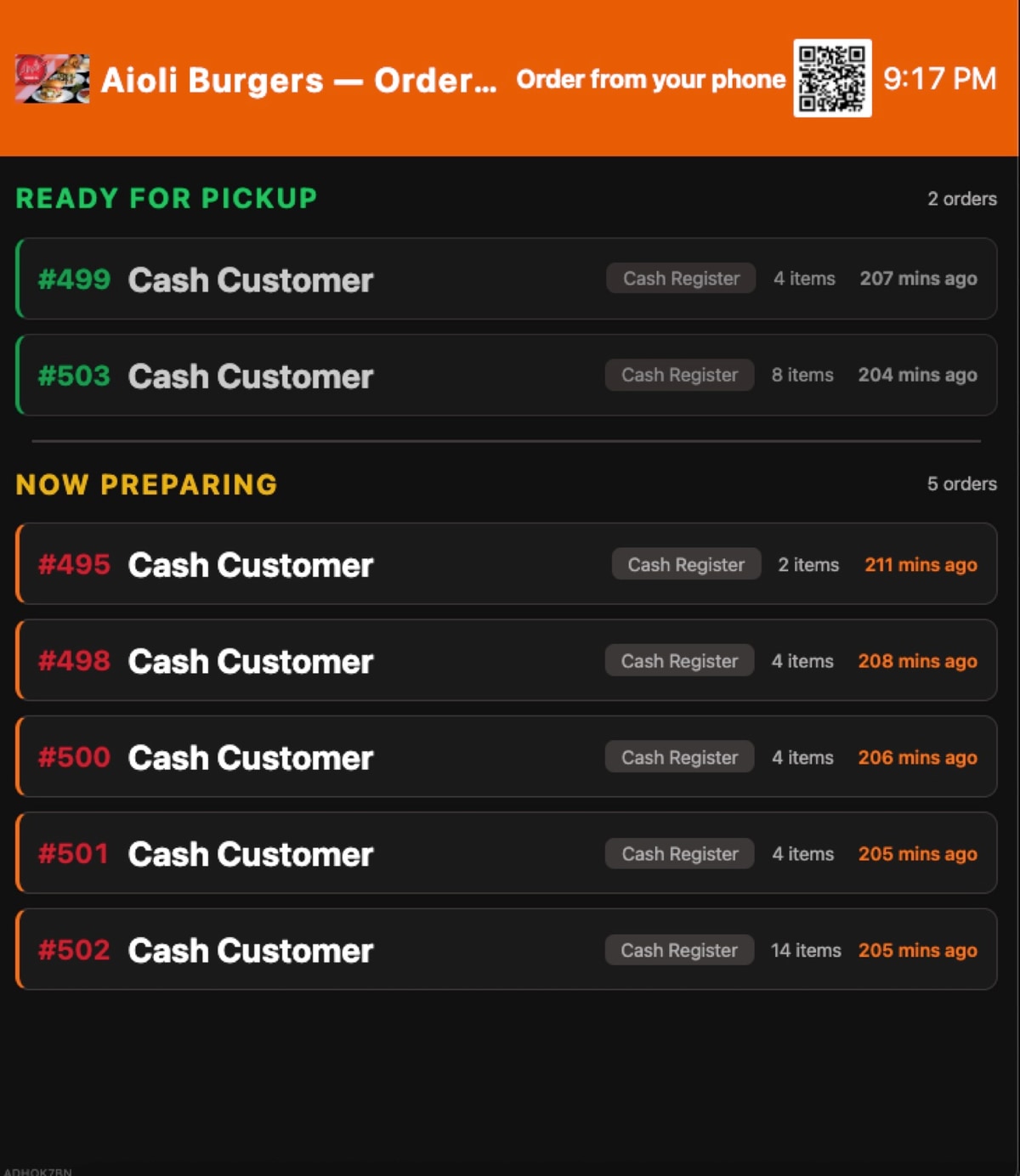
Order status on its own
A pickup screen for the window, so nobody has to ask whether their number is up.


Every layout reads the same menu, so a price change lands on all of them at once.
What the board does
What fans see is what you are selling right now.
A paper menu is wrong the first time a price changes or the pretzels run out. The board is never wrong, because it is reading the same menu the terminal is using.
- Prices from the terminal
- The board reads the same menu as your terminals, kiosks, and mobile ordering. Change a price once and it changes everywhere.
- Sold out on its own
- Mark an item sold out on the terminal and it strikes through on the board. Nobody walks up to order something you do not have.
- QR code for mobile ordering
- A code in the corner of the board opens the same live menu on a fan’s phone, so the line gets shorter while the board does the selling.
- Sponsor ads
- Three styles: a banner along the bottom, a tall ad down the side, or a full-screen ad between menus.
- A photo beside the menu
- Put one photo next to the category and let it do the selling, with a short description under each item if you want one.
- Your colors and logo
- Light or dark, your logo at the top, categories in the order you want them.
- More than one screen
- A different layout on each TV, and a different menu for each stand.
You set it up
Change it yourself, from the portal
Pick which screens show which layout, upload an ad, and choose where it runs. Turn an ad on for one TV or all of them, and set how often a full-screen ad takes over.
- Bottom banner, side panel, or full screen
- On for one TV or every TV at the venue
- Set the full-screen timing, or leave it on normal
- No call to support to change a price or an ad

Sponsor ads
Sell the space and the board pays for itself
Three styles: a banner along the bottom, a tall ad down the side, or a full-screen ad. Sell any of them to a local business, a realtor, a car dealer, or a booster sponsor. The menu stays readable with the banner or the side ad, and you can leave the space off entirely.
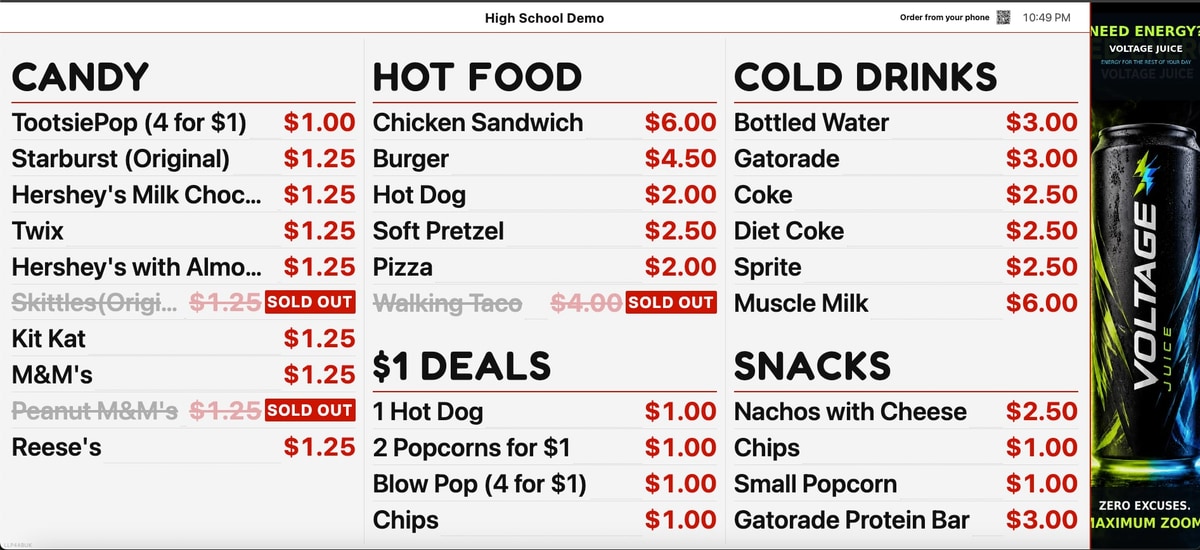
One ad down the side
A full-height slot beside the menu, sized for a single sponsor.
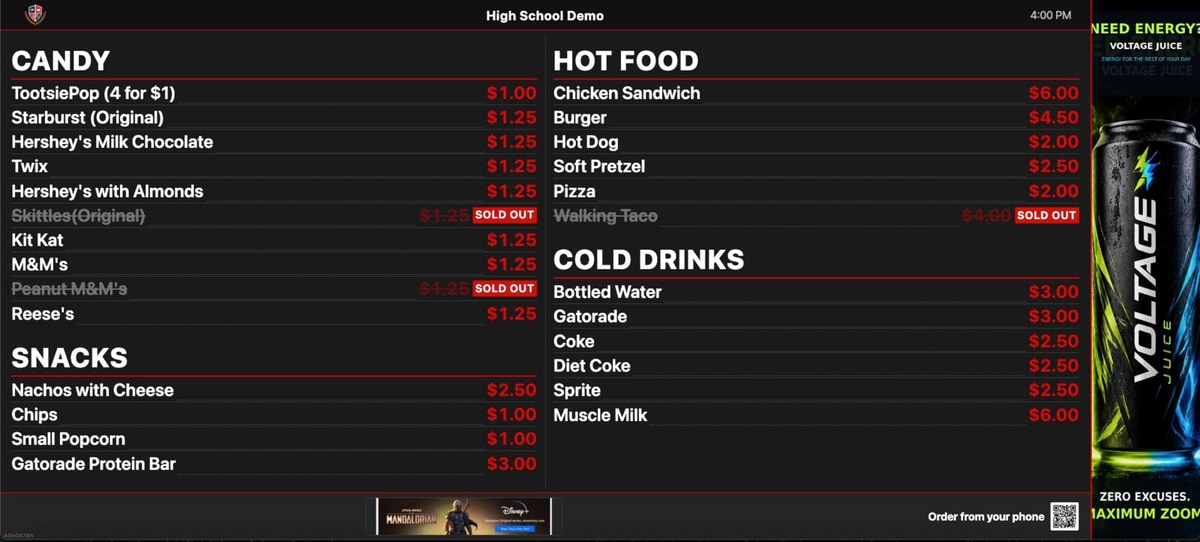
Side and bottom
Add a banner along the bottom next to the ordering code, and sell two spots on one screen.
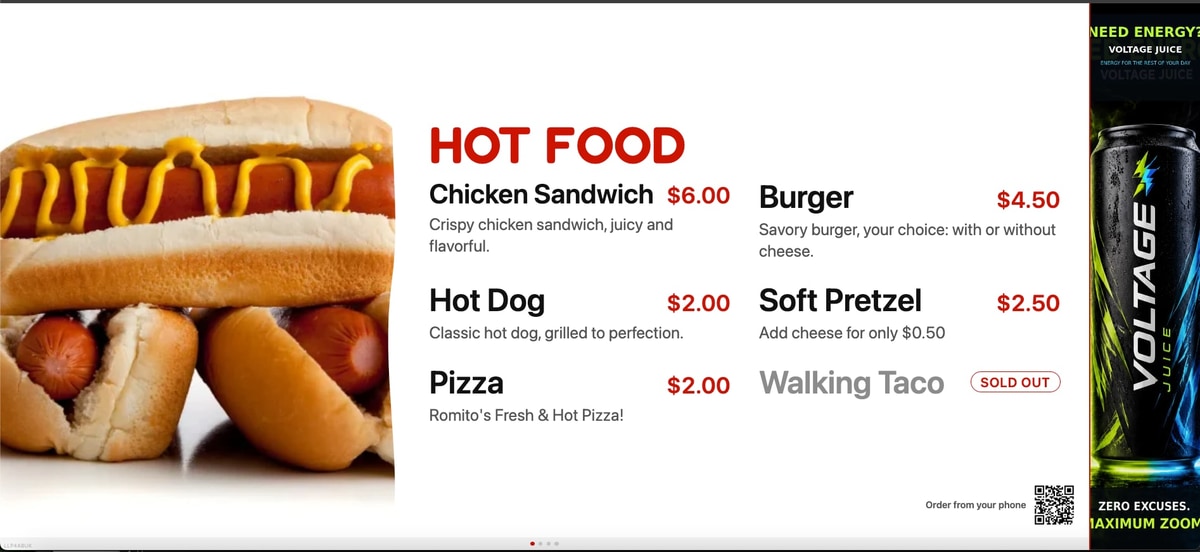
Beside a photo menu
The side slot works on the photo layout too. The photo, the menu, and the sponsor all fit.


Boards in use
On a TV, next to the terminal and the kiosk.


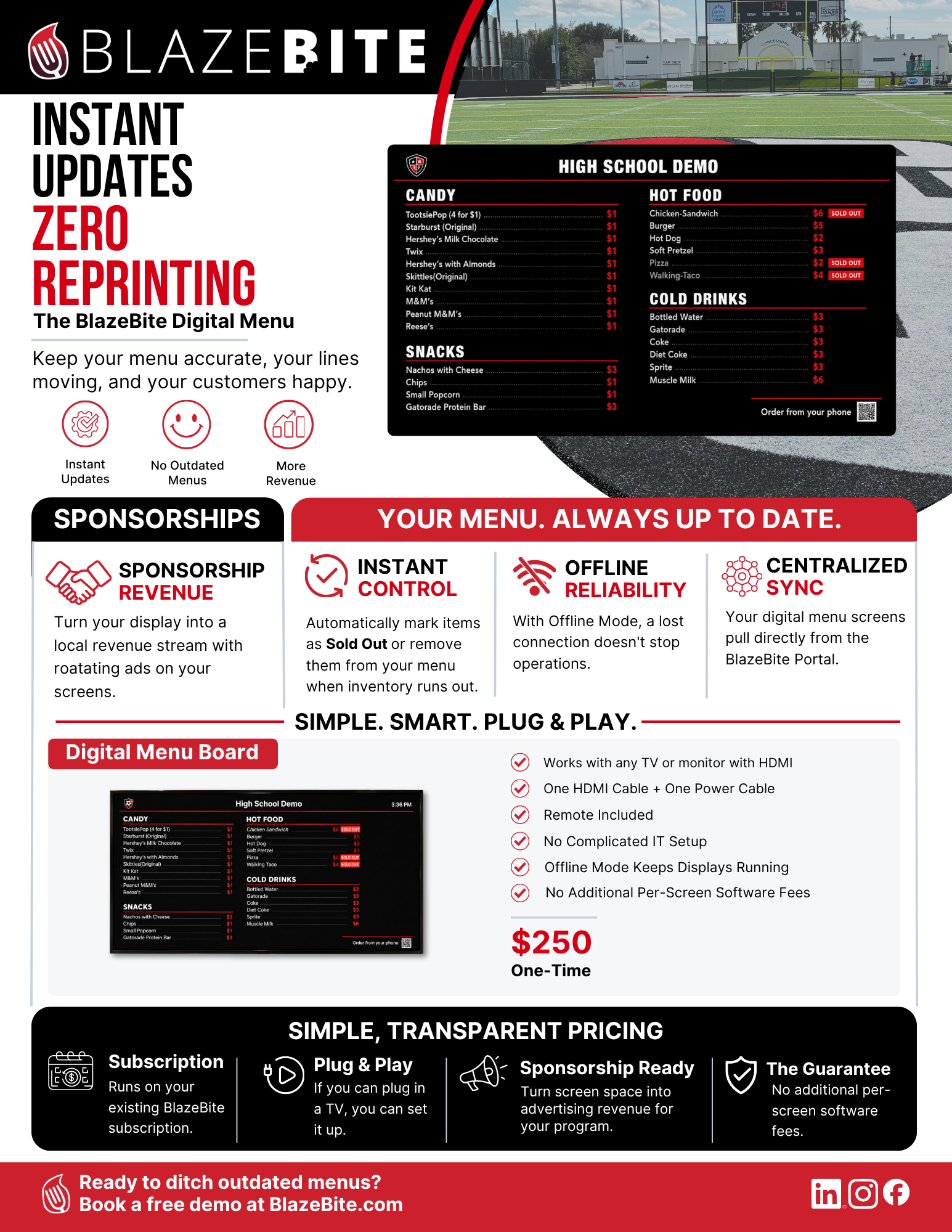
Digital Menu Board Product Sheet
Instant updates, zero reprinting. What the board does and what it costs. One page, ready to print or send to whoever signs off.
See your menu on a board.
Send us your menu and a photo of the stand, and we will show you what the board looks like on your TV on a thirty-minute call.
Questions? sales@blazebite.com